
Getting started
Five steps from sign-up to your first downloaded result.
- 1
Create your account and verify your email
Sign up with your work email and a password. You will receive a verification link - confirm it before running tasks. Verification keeps your stored HMRC credentials tied to an address only you control. No credit card is needed for the Free plan (10 tasks a month).
- 2
Add your Government Gateway credentials
Go to Settings → Gateway and enter the Government Gateway user ID and password you use to sign in to your HMRC agent account. These are securely encrypted and only ever used to sign in to HMRC on your behalf when you run a task. If you act under more than one agent account, you may add additional accounts and switch between each one.
- 3
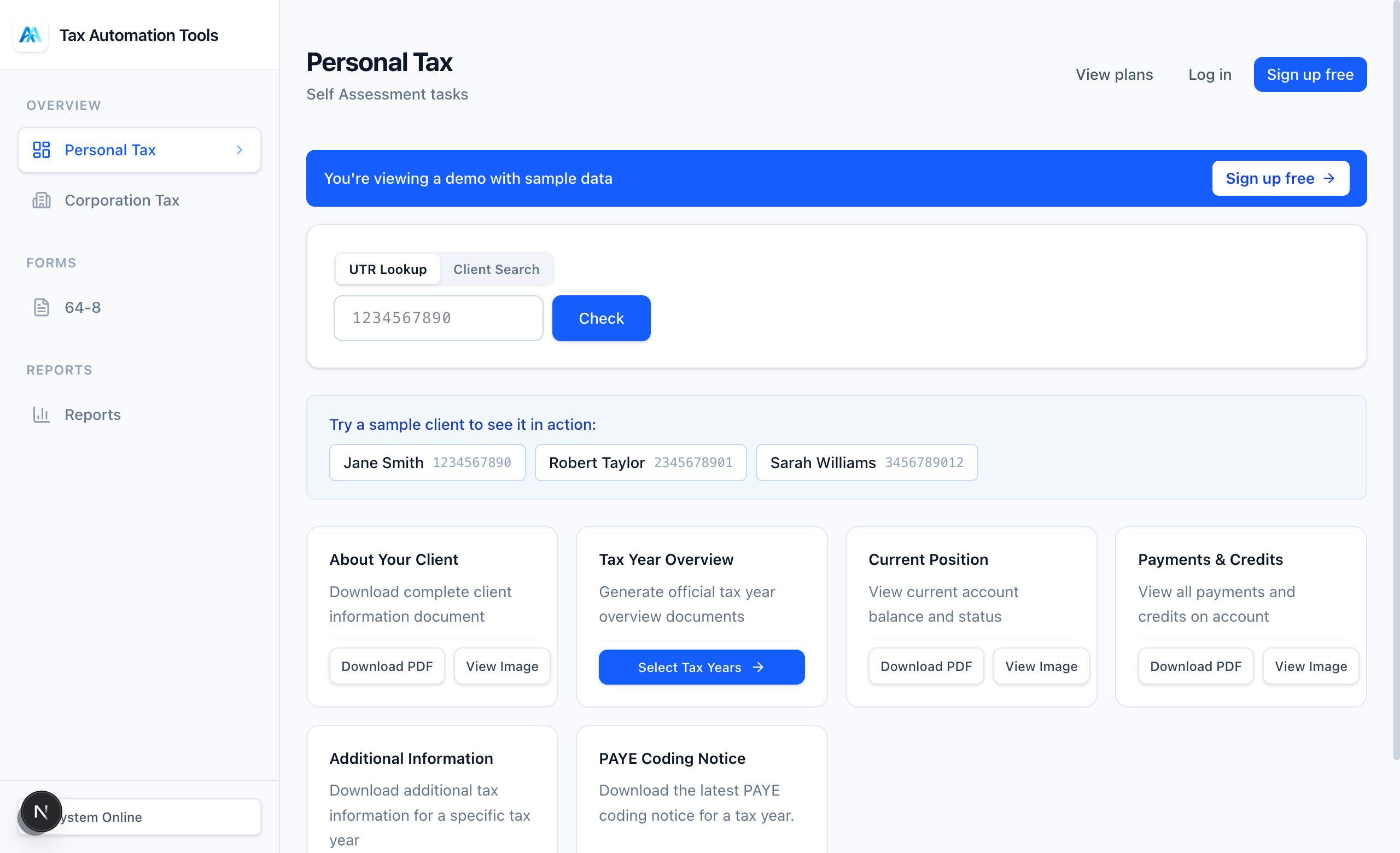
Add clients or paste UTRs
You can import a client list (name, code, UTR) so you can search by name, or simply paste a column of 10-digit UTRs straight from a spreadsheet when you run a task. Either works - the client list just saves typing later.
- 4
Run your first task
Pick Personal Tax or Corporation Tax, enter a client UTR (or load a saved client), choose a task such as Tax Year Overview, and pick an output format (PDF, image or data). Press run and it fetches the requested document in seconds.
- 5
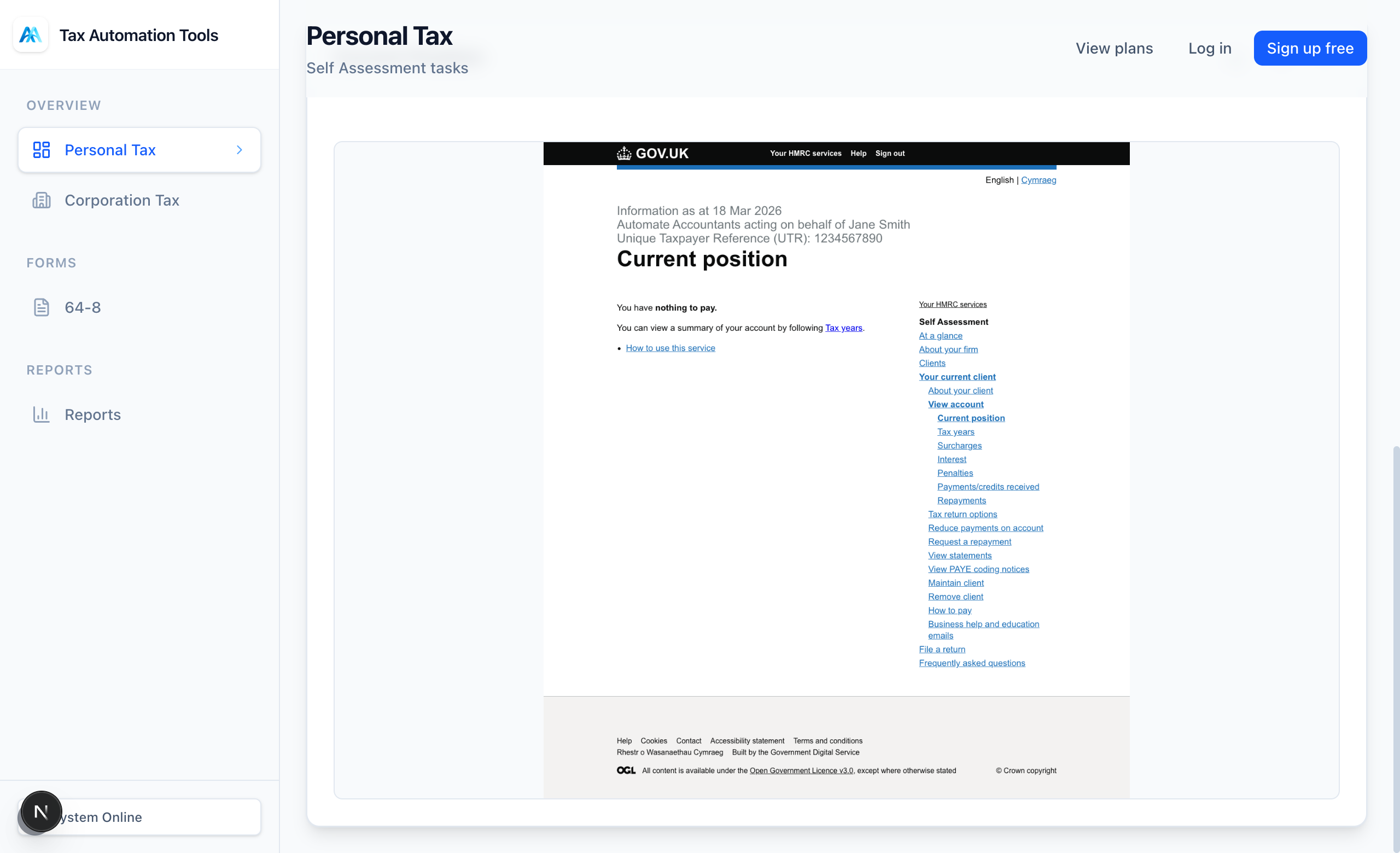
Find and download your results
Results appear on screen. Pin multiple tasks to keep it visible while you run others, or download it. For multiple clients use a Workflow or a Bulk report so everything is collected together and downloaded in one go.
Ready to try it?
The Free plan includes 10 tasks a month and takes about a minute to set up - no card required.